
해딸의 개발 공부 노트
Unity엔진과 Fmod를 연동하여 사운드 처리하기 본문
영상에서처럼 총소리와 발소리를 구현하였다.
미들웨어는 Fmod를 사용하였다.
FMOD
The sonic universe of Creaks We talked to the creative team responsible for the audio of Creaks, the latest game from renowned Czech game developer, Amanita Design. Visit blog
www.fmod.com
using System.Collections;
using UnityEngine;
using UnityEngine.UI;

public class PlayerCtrl : MonoBehaviour
{
    public float moveSpeed;
    public float turnSpeed;
    Animation anim;
    private Image hpbar;
    public readonly float initHP = 100;
    public float currentHP;
    public UIManager ui;

    public delegate void PlayerDieHandler();
    public static event PlayerDieHandler OnPlayerDie;

    //유니티 이벤트 함수
    private void Awake()
    {
        //가장먼저 호출(한번).스크립트가 비활성화 되어있어도 호출됨
        anim = GetComponent<Animation>();
    }
    private void OnEnable()
    {
        //스크립트가 활성화 될때 마다 호출됨
    }

    //여기서부턴 스크립트가 비활성화되면 호출안됨

    IEnumerator Start()
    {
        hpbar = GameObject.FindGameObjectWithTag("HPbar")?.GetComponent<Image>();//태그로 찾는건 좋은 방법이 아님
        //? : null이면 null값 반환

        currentHP = initHP;

        ui.DisplayHealth();

        //모든 awake호출이 완료되면 호출됨(한번).코루틴으로 호출 가능
        turnSpeed = 0;
        anim.Play("Idle");
        yield return new WaitForSeconds(0.3f);
        turnSpeed = 15;

    }
    private void FixedUpdate()
    {
        //일정시간(0.02초)마다 호출.물리처리를 위해 사용
    }
    private void Update()
    {
        //프레임마다 호출.호출간격이 불규칙함
        //화면의 렌더링 주기와 일치함
        float h = Input.GetAxis("Horizontal");
        float v = Input.GetAxis("Vertical");
        float r = Input.GetAxis("Mouse X");//마우스 X좌표값
        //Debug.LogFormat("h : {0}, v : {1}", h, v);

        //Time.deltaTime를 쓰는 이유 - 프레임레이트가 다른 기기에서도 일정한 속도로 이동하기 위함
        transform.Translate(new Vector3(h, 0, v).normalized * moveSpeed * Time.deltaTime, Space.Self);//로컬좌표 기준 이동
        //transform.Translate(new Vector3(h, 0, v).normalized * moveSpeed * Time.deltaTime, Space.World);//월드좌표 기준 이동
        transform.Rotate(Vector3.up * turnSpeed * r);
        PlayerAnim(h, v);
    }
    private void LateUpdate()
    {
        //update종료 후 호출됨.카메라 처리를 위해 사용
    }
    private void PlayerAnim(float h, float v)
    {
        //키보드 입력값으로 동작할 애니메이션
        if (v >= 0.1f)
        {
            anim.CrossFade("RunF", 0.25f);//전진
        }
        else if (v <= -0.1f)
        {
            anim.CrossFade("RunB", 0.25f);//후진
        }
        else if (h >= 0.1f)
        {
            anim.CrossFade("RunR", 0.25f);//오른쪽
        }
        else if (h <= -0.1f)
        {
            anim.CrossFade("RunL", 0.25f);//왼쪽
        }
        else
        {
            anim.CrossFade("Idle", 0.25f);//기본
        }

    }
    private void OnTriggerEnter(Collider other)
    {
        if(currentHP >= 0 && other.CompareTag("Punch"))
        {
            currentHP -= 10;
            ui.DisplayHealth();

            if (currentHP <= 0)
            {
                PlayerDie();
            }
        }
    }

    private void PlayerDie()
    {
        OnPlayerDie();
    }
}
using System.Collections;
using System.Collections.Generic;
using UnityEngine;
public class FireCtrl : MonoBehaviour
{
public GameObject bullet;
public Transform firePoint;
private MeshRenderer muzzleFlash;
private Coroutine muzzleFlashCoroutine;
private void Awake()
{
muzzleFlash = firePoint.GetComponentInChildren<MeshRenderer>();
}
private void Update()
{
if (Input.GetMouseButtonDown(0))
{
Fire();
}
}
private void Fire()
{
Instantiate(bullet, firePoint.position, firePoint.rotation);
if (muzzleFlashCoroutine != null)
{
StopCoroutine(muzzleFlashCoroutine);
}
muzzleFlashCoroutine = StartCoroutine(ShowMuzzleFlash());
}
IEnumerator ShowMuzzleFlash()
{
Vector2 offset = new Vector2(Random.Range(0, 2), Random.Range(0, 2) * 0.5f);
muzzleFlash.material.mainTextureOffset = offset;
float angle = Random.Range(0, 360);
muzzleFlash.transform.localRotation = Quaternion.Euler(0, 0, angle);
float scale = Random.Range(1, 2);
muzzleFlash.transform.localScale = Vector3.one * scale;
muzzleFlash.enabled = true;
yield return new WaitForSeconds(0.2f);
muzzleFlash.enabled = false;
}
}플레이어를 컨트롤하는 스크립트이다. 여기에서 Audio관련 컴포넌트는 찾아볼 수 없다.
미들웨어를 사용하면 사운드를 다음과 같이 분리할 수 있다.
FMOD사운드 엔진을 사용해보자.
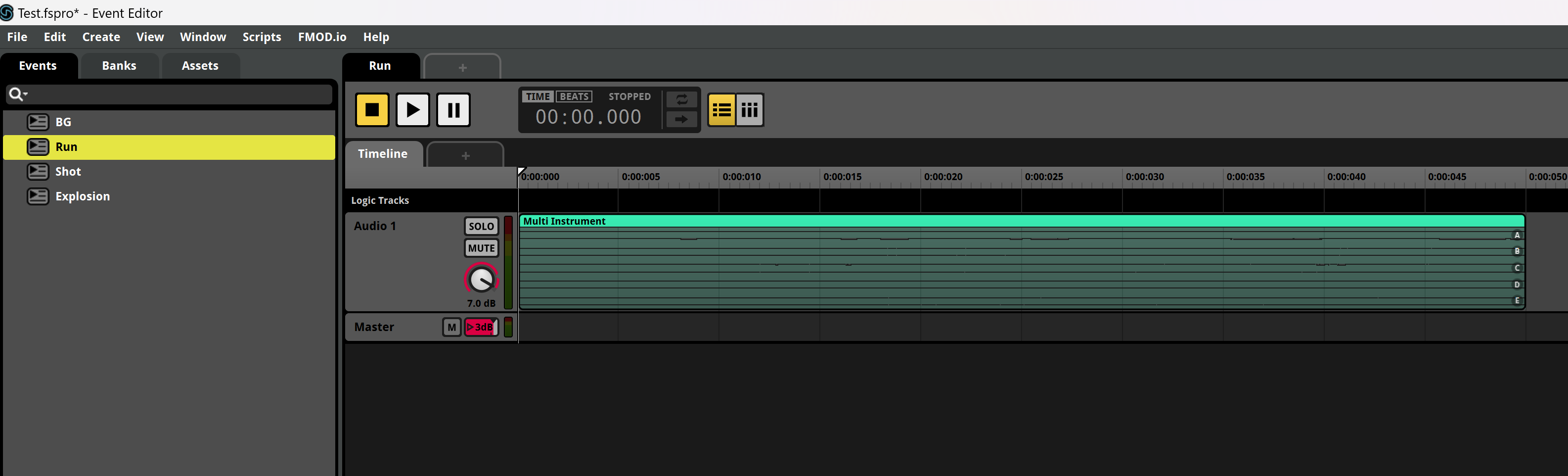
각 이벤트를 나누어 사운드를 작업해주고 적당한 경로에 빌드한다.

유니티로 돌아와서 프로젝트 파일들을 보면 플러그인에 이런 파일이 있다.

여기서 프로젝트 경로에 빌드한 fmod프로젝트를 등록해준다.
이후에

빈 오브젝트를 만들어 컴포넌트를 붙이고 배경음악 이벤트를 등록
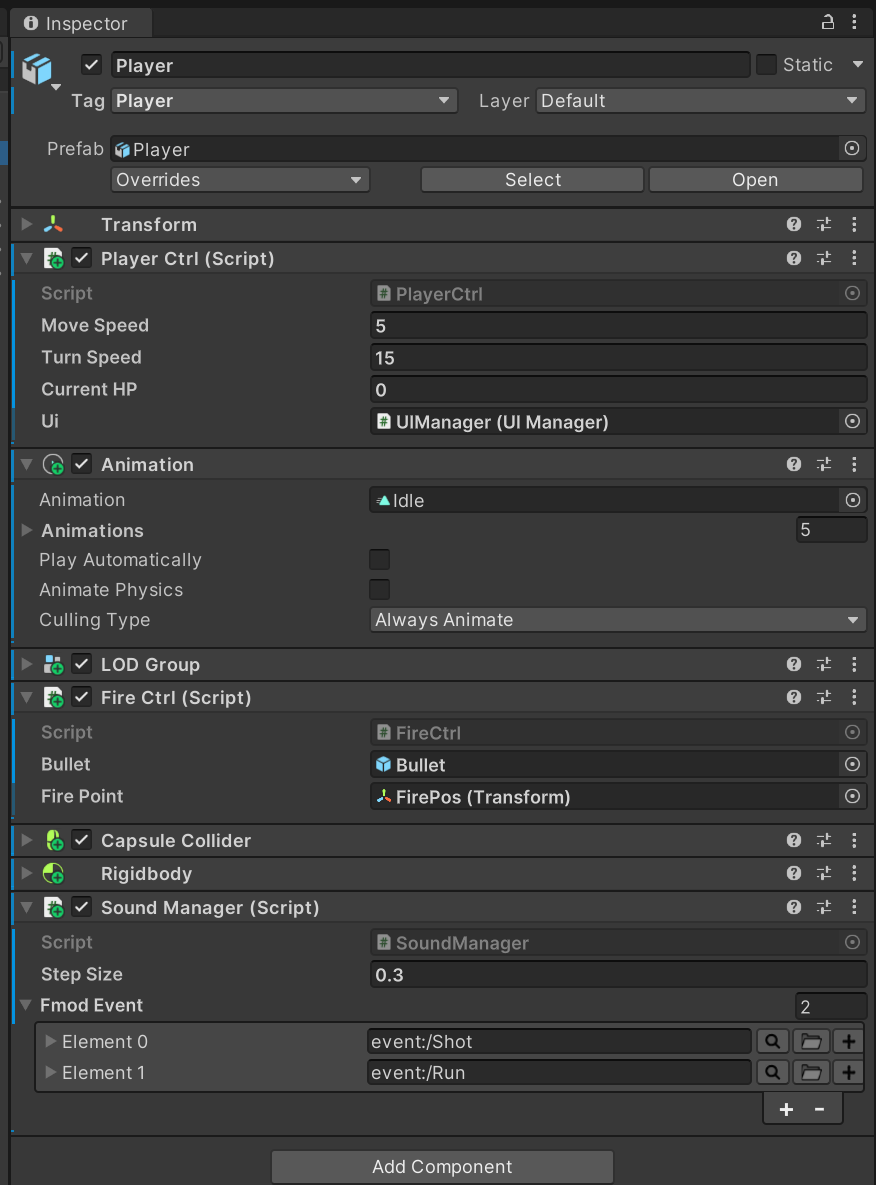
플레이어에 이벤트 등록
using UnityEngine;
using FMODUnity;

public class SoundManager : MonoBehaviour
{
    [Tooltip("보폭시간을 조정합니다.")]
    public float stepSize = 0.3f;
    [Tooltip("fmodEvent에 이벤트를 등록해주세요.\n0 = Shot, 1 = Run")]
    [NonReorderable]//인스펙터에서 배열 순서변경 불가
    public EventReference[] fmodEvent;
    float h, v;

    private void Update()
    {
        h = Input.GetAxis("Horizontal");
        v = Input.GetAxis("Vertical");

        Shot();
        Run();
    }
    private void Shot()//총소리
    {
        if (Input.GetMouseButtonDown(0))
        {
            // FMOD 이벤트 재생
            RuntimeManager.PlayOneShot(fmodEvent[0]);
            Debug.Log("shot");
        }
    }
    float timer = 0;
    private void Run()//발소리
    {
        timer += Time.deltaTime;
        if (timer > stepSize && (h != 0 || v != 0))
        {
            RuntimeManager.PlayOneShot(fmodEvent[1]);
            timer = 0;
        }
    }
}
SoundManager스크립트
'게임 사운드' 카테고리의 다른 글
| Unity엔진과 Wwise를 연동하여 사운드 처리하기 3 (0) | 2025.09.25 |
|---|---|
| Unity엔진과 Wwise를 연동하여 사운드 처리하기 2 - 효과음 (1) | 2025.09.13 |
| Unity엔진과 Wwise를 연동하여 사운드 처리하기 1 - 기본 설정 (0) | 2025.09.10 |
| Unreal엔진과 Wwise를 연동하여 사운드 처리하기 - 2 (0) | 2025.08.22 |
| Unreal엔진과 Wwise를 연동하여 사운드 처리하기 - 1 (1) | 2025.08.22 |
'게임 사운드' Related Articles
more


